
Checklist Guide
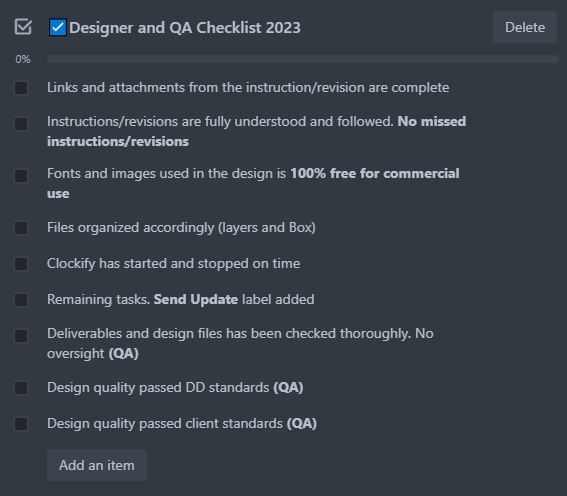
Make sure all links are working and attachments are uploaded in Box. If links are not working and attachments are missing, let your AM know right away.
Make sure you understood the instruction and all revisions from the client is followed and nothing is missed. This is one of the reasons why clients leave the company and if this happens, it will reflect in your performance review.
Fonts
Fonts used should be 100% free for commercial use, you can download free fonts from fonts.google.com or dafont.com.
Make sure dafont.com is also 100% free and Public Domain. Example:
- Filtering. Check Public Domain and 100% Free box

- Check the top right of the font if it’s free


- Filtering. Check Public Domain and 100% Free box
📌 Remember you are only allowed to use paid fonts if the client provided the fonts or if the client doesn’t want google fonts or wants a paid font. Never suggest/propose a paid font as the first option. Also, add the links to the paid fonts in your notes.
Images
Images used should be 100% free for commercial use, you can download free images from unsplash.com, pixabay.com, and other free image sites.
📌 Remember you are only allowed to use paid images if the client provided the images or if the client doesn’t want free images and wants paid images. Never suggest/propose paid images as the first option. Also, add the links to the paid images in your notes.
Make sure all necessary files are uploaded and updated in Box. The final artworks to deliverables, the design files to design, and the mockup to mockups.
Don’t forget to upload the fonts you’ve used inside the design folder. Ticket > design > fonts.
If the ticket requires design assets (e.g. illustrations, icons, images for web design), create an assets folder inside the design folder.
Don’t forget to upload updated design files for continuation/revision tickets.
Follow File and Folder Naming in Box File Organization Lesson.
If you’re using the Trello app, make sure you start your clockify timer for the ticket as soon as you move it to In Progress. Subsequently, stop your clockify timer for the ticket before moving it to To Review.
If you’re using Trello on Chrome, download the Clockify extension. You should be able to see the “Start Timer” button on the Trello card.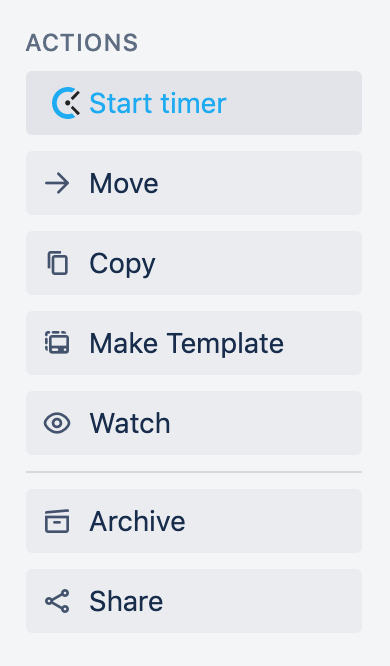
Before moving your ticket to To Review column, never forget to update that ticket’s client last activity. Here’s how to update 📑Updating Client Activity
If there are remaining tasks on the ticket left, make sure you add the remaining tasks in your notes, and don’t forget the add the label “Send Update“.
To be checked by QAs
To be checked by QAs
To be checked by QAs